System installation
Copyright © Quectel Wireless Solutions Co., Ltd. 2026. All rights reserved.
Obtain the Image
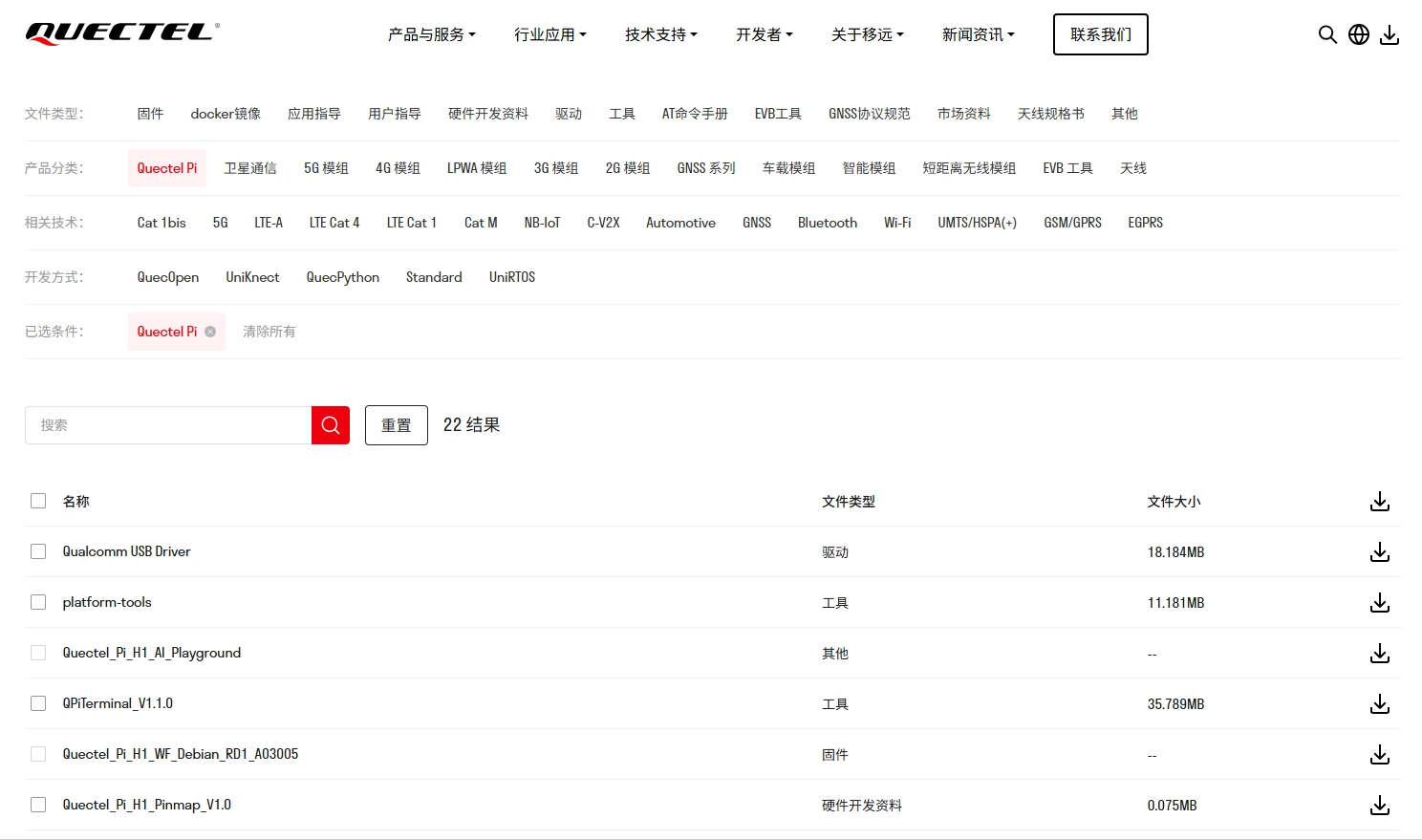
The system image for the Quectel Pi M2 smart main control board can be obtained from the Quectel Developer Website. Click “Quectel Pi” in the product category navigation bar to find and download the required image. If you have any questions, please contact technical support.
Flash the Image (RKDevTool)
RKDevTool is a firmware flashing tool for Rockchip platforms. The Quectel Pi M2 is equipped with the RK3576 processor, and Debian firmware can be flashed to the device using RKDevTool.
Download the Flashing Tool
On a Windows PC, install the Rockchip USB Driver and use RKDevTool to flash the firmware.
Open RKDevTool
Open RKDevTool v3.37 on the Windows PC.
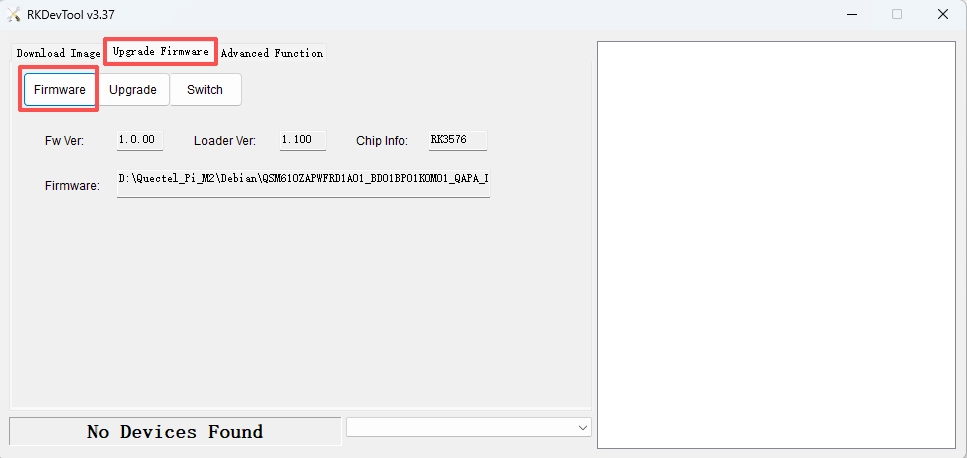
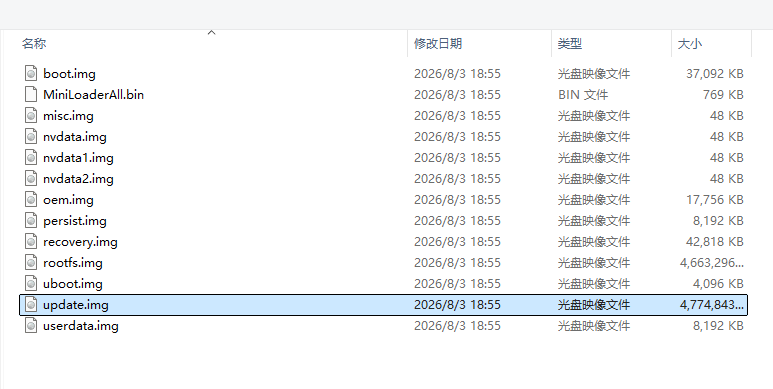
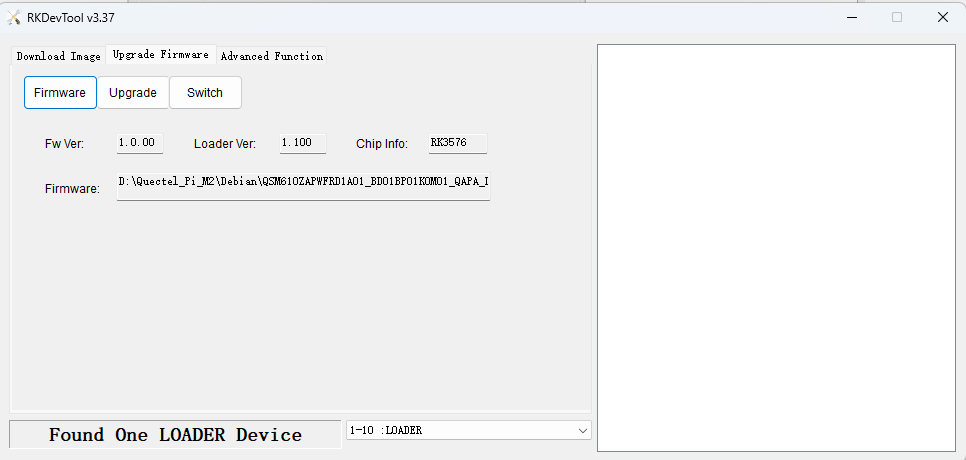
Select the Upgrade Firmware page, click the Firmware button, and select the update.img file from the firmware package to be flashed.
Wait for the firmware to finish loading and confirm that Chip Info displays RK3576.
Enter Loader Mode
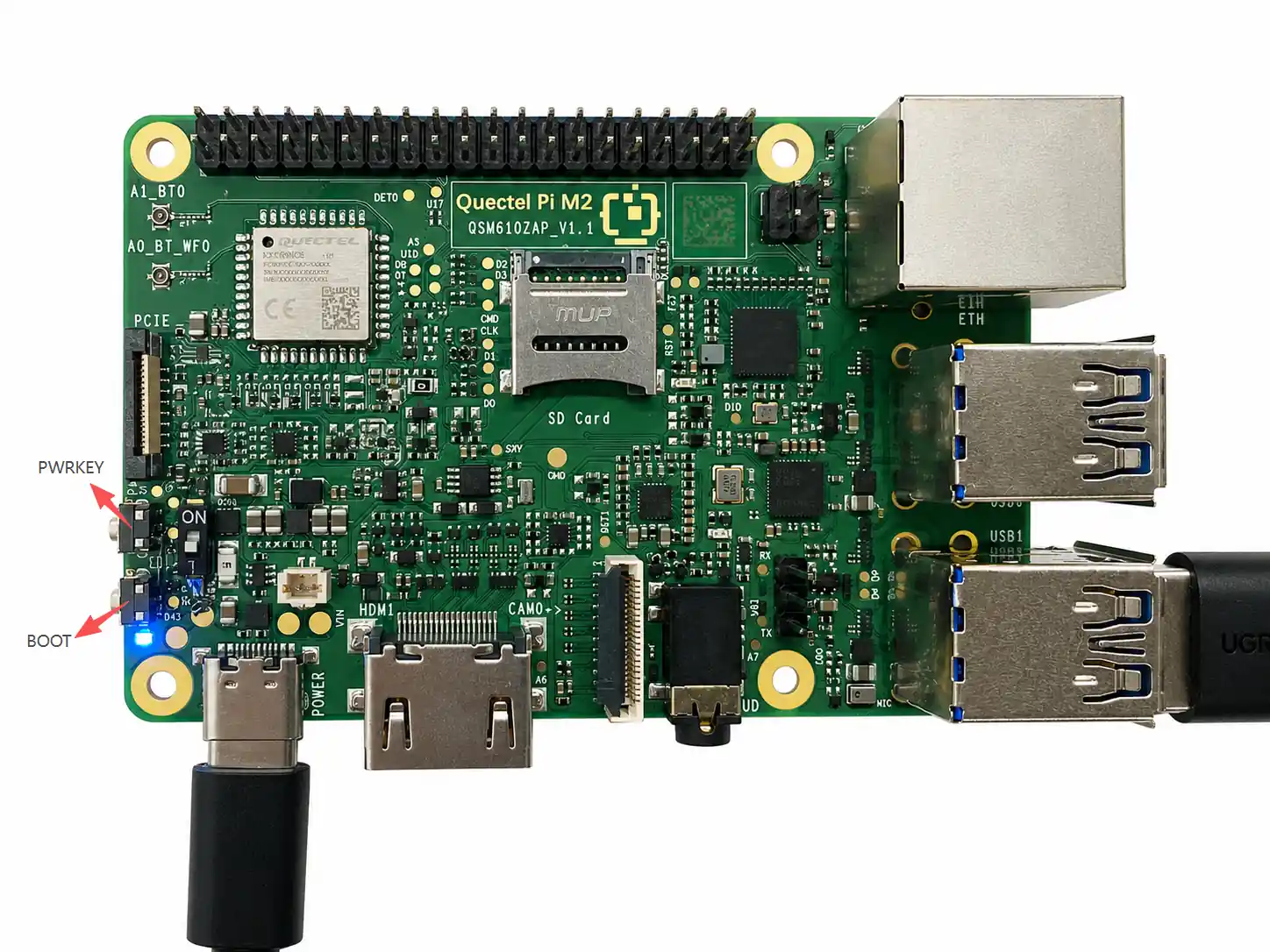
Connect the Type-C power cable and the USB-A to USB-A data cable. Press and hold the BOOT button first, then press the PWRKEY button to power on the device. After approximately 2–3 seconds, release both buttons to enter Loader mode.
After the device successfully enters Loader mode, the lower-left corner of RKDevTool displays: Found One LOADER Device.
Flash the Firmware
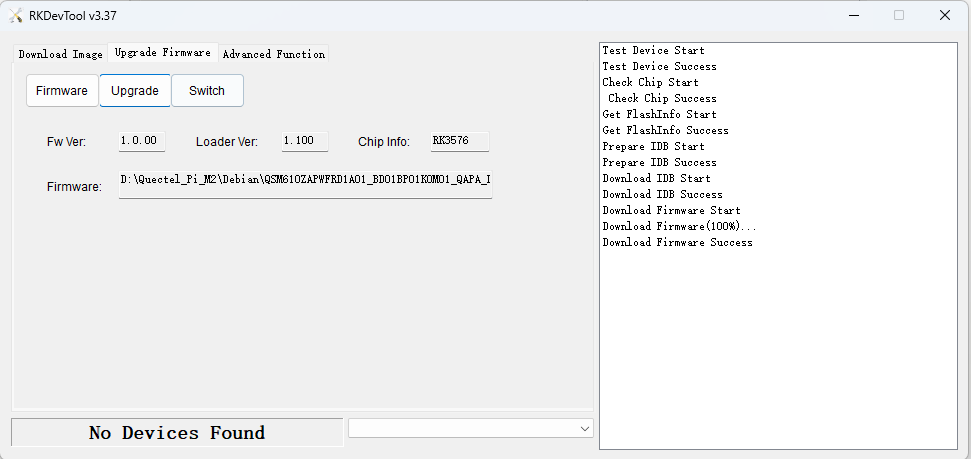
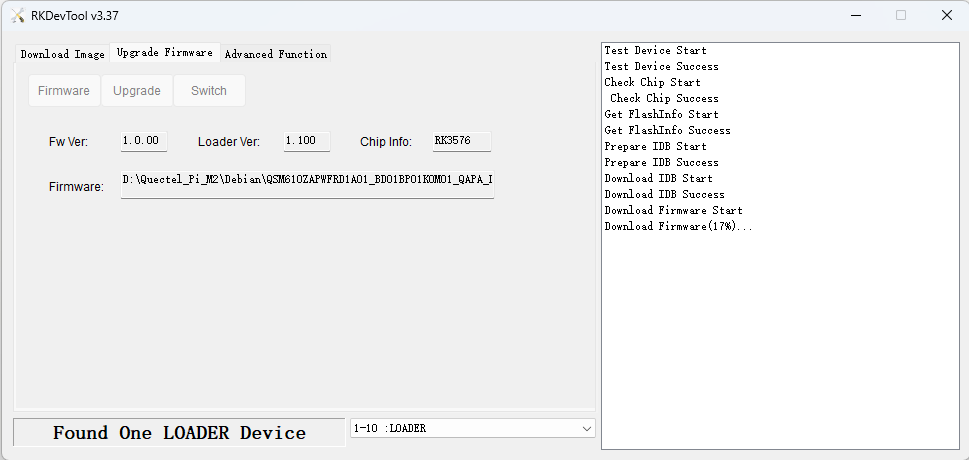
After confirming that RKDevTool has loaded update.img and the device is in Loader mode, click the Upgrade button to start flashing the firmware.
During the flashing process, the firmware download progress will be displayed in the log window on the right.
Confirm the Flashing Is Complete
When “Download Firmware Success” is displayed in the log window on the right side of RKDevTool, the firmware has been flashed successfully.